To upload your website content, please follow these steps:
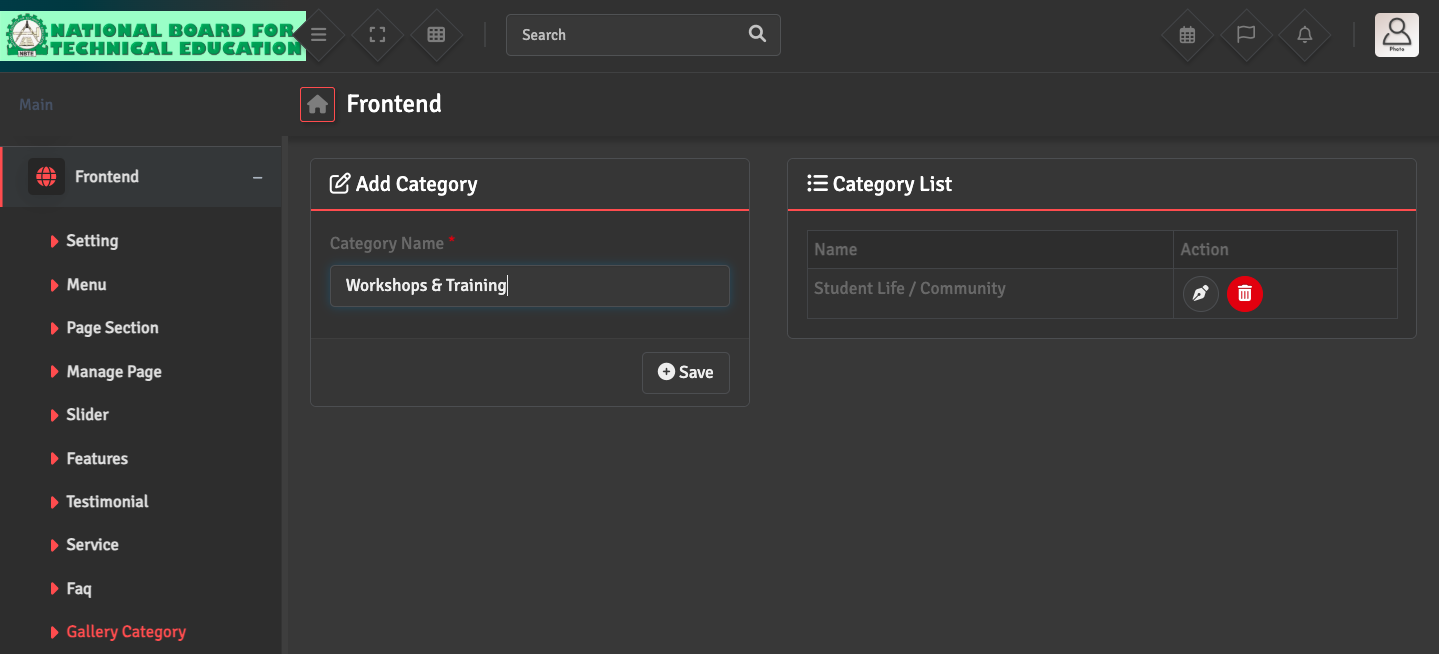
For Photos: First, navigate to Frontend → Gallery Category to create the appropriate category folders for your content.
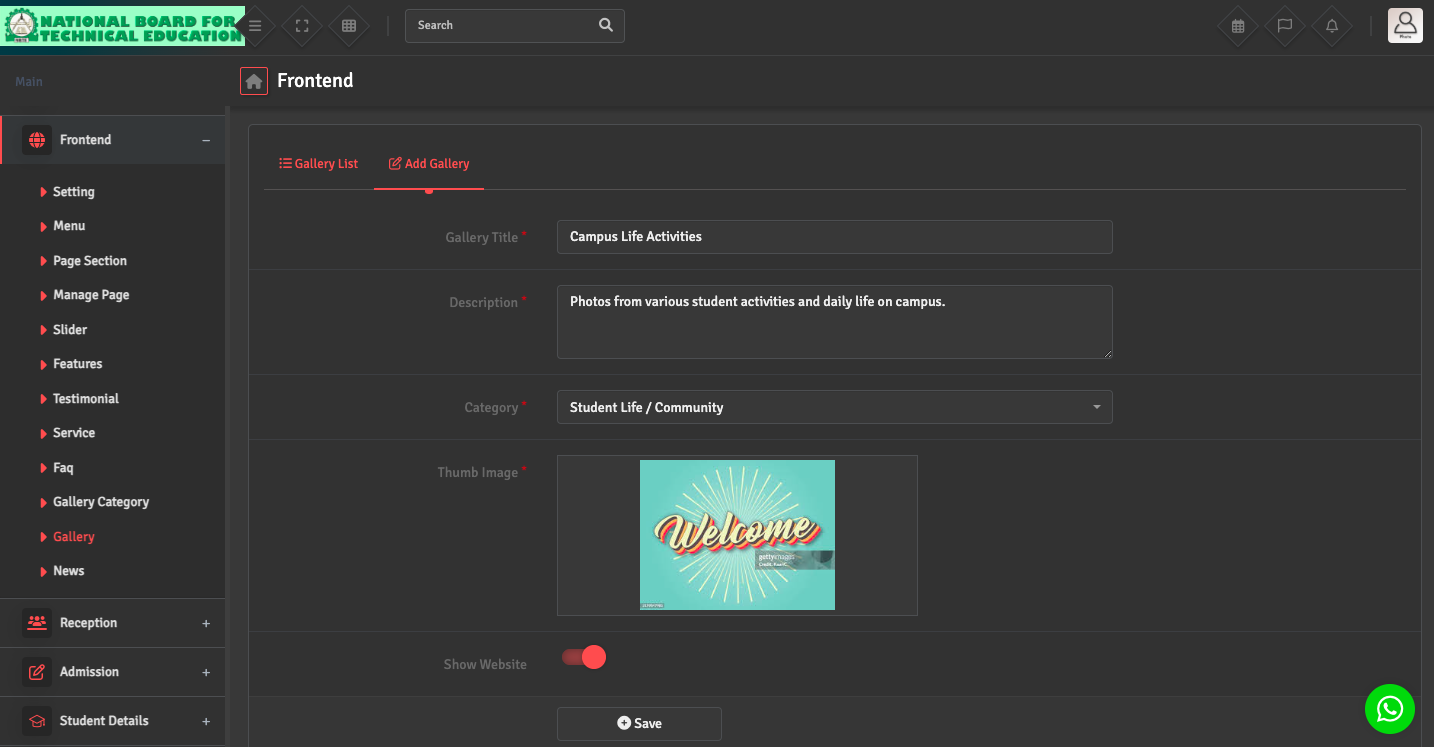
Once the category is ready, go to Frontend → Gallery → Add Gallery to upload and link your images to that category. Make sure the Show on Website option is turned ON.
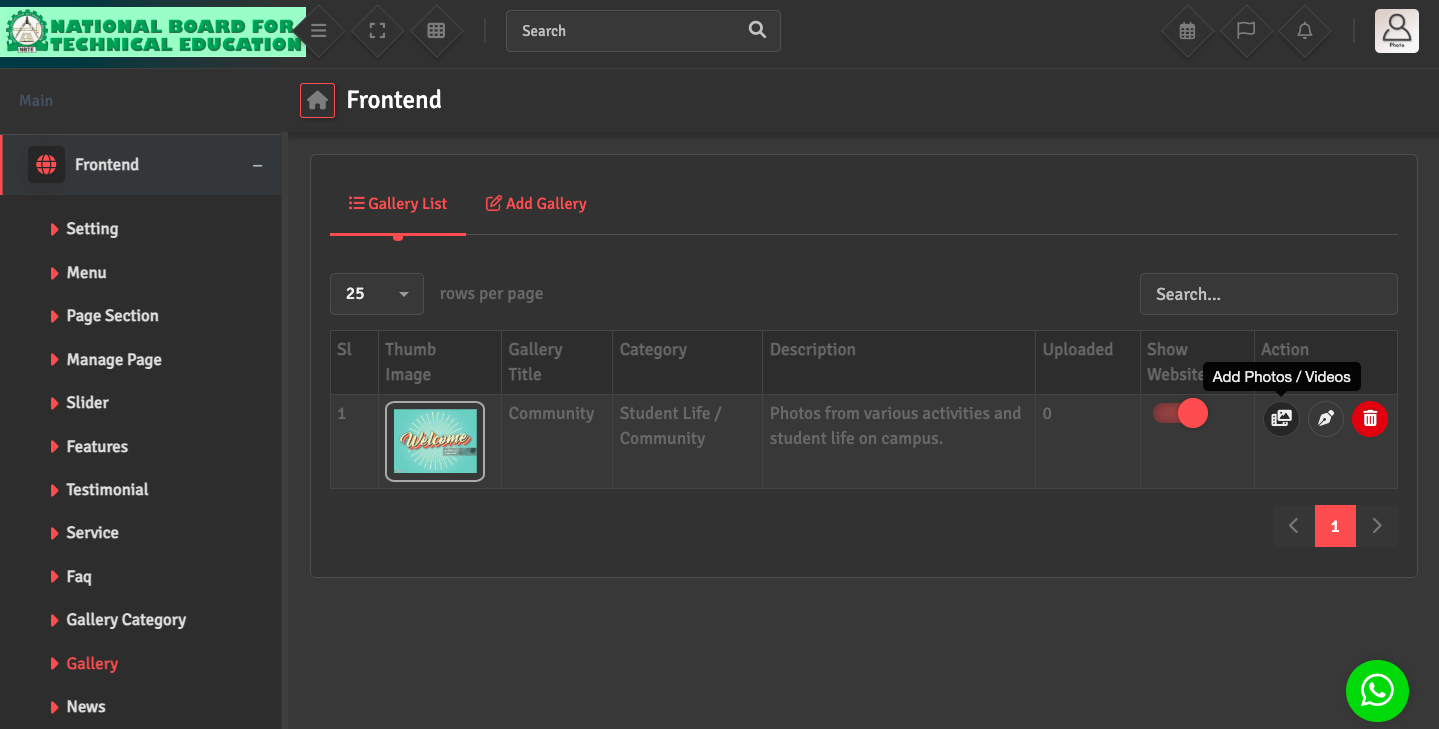
Go to the Gallery List and, under the Action section, click Add Photos/Videos. From there, you can upload photos or videos for the selected gallery category.
ERP
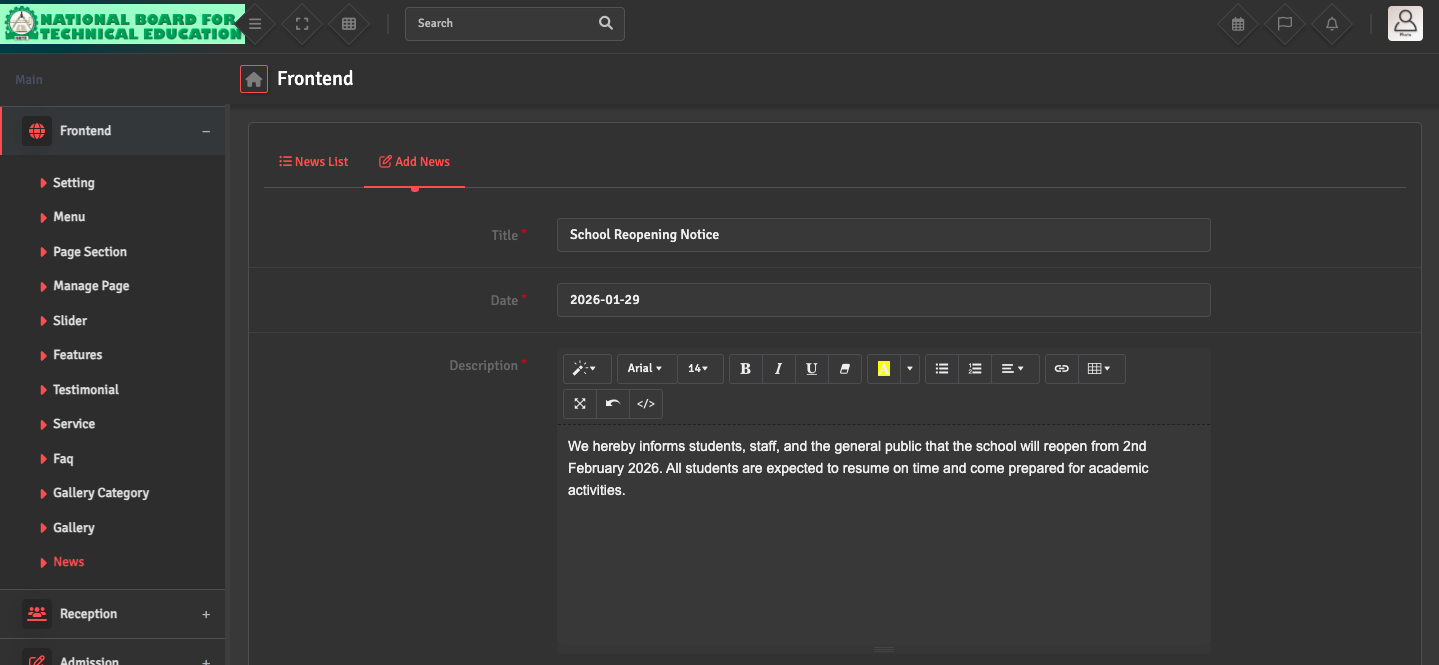
For Announcements: Navigate to Frontend → News → Add News. After entering the details, ensure the Show on Website option is toggled ON. If this is not selected, the post will remain as a draft and won't be visible to the public.
To make changes, go to the News List and click on the Pen icon under the Action section and update the item.
ERP
Viewing Changes: If the updates do not appear immediately, please clear your browser cache.