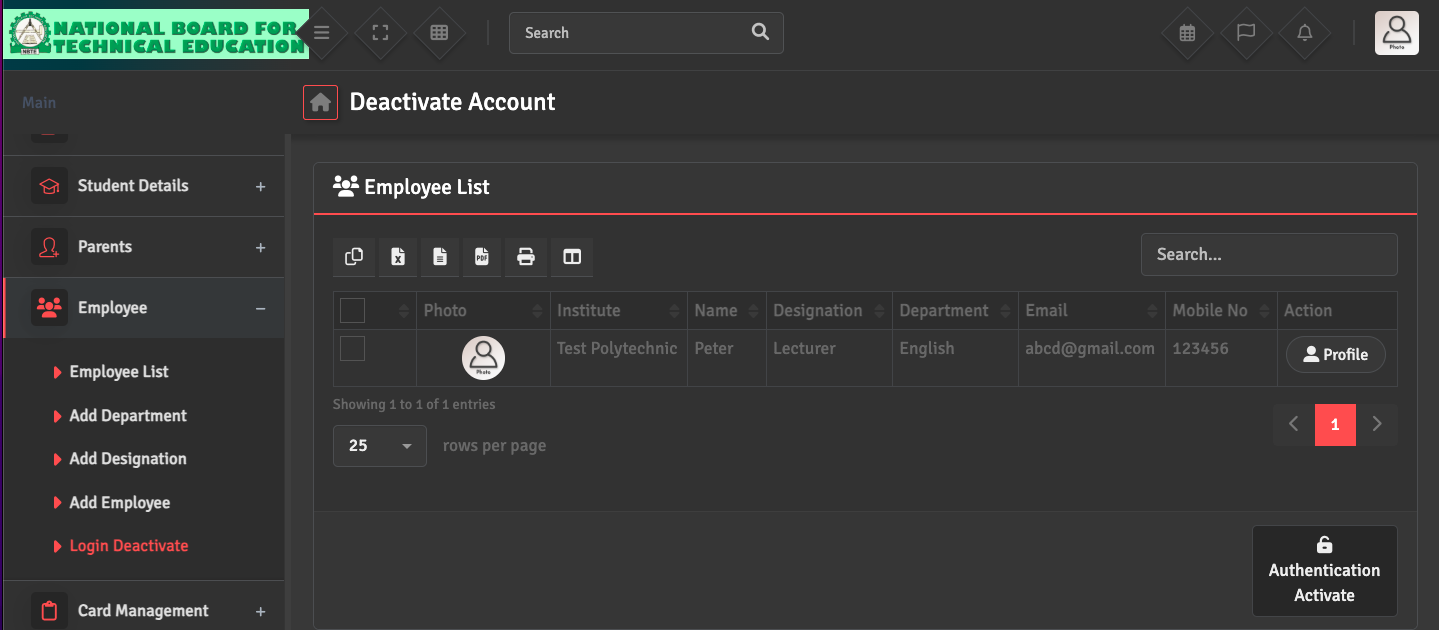
Account Locked / Suspended

For security reasons, accounts may be automatically locked after multiple failed login attempts.  

To reactivate an account, navigate to Employee → Login Deactivate (for staff) or Student Details → Login Deactivate (for students). From there, you can view the list of inactive users and select 'Authentication Activate' to restore their access to the ERP instantly.

You can also track who logged in, when, from where, and on which device, and manage user status under Settings → User Login Log.

Did you find this article useful?

  • ERP Login Not Working

    Please ensure you are using the correct ERP URL provided during your onboarding. Double-check ...
  • Password Reset

    To reset your password, please click on the Profile Icon on the top right and select 'Reset Passwor...
  • Admin Credentials Not Received

    Initial admin credentials (URL, username, and password) are sent directly to the NBTE ERP Applicati...
  • Staff Login Not Created

    Staff logins are managed under the Employee → Add Employee section. To create a login, ensure...
  • Student Login Not Working

    You can check or reset individual student login details by navigating to Student Details → St...